Tutorials • Webuzo
Adding Web Redirects in Webuzo
Learn how to configure URL redirections in Webuzo with this step-by-step guide. Follow the instructions to manage redirections effectively.
1
Views 1273Updated 1 anPublished on 14/09/2017by Alexandru R.
Introduction
- In this tutorial we will present how to set/manage URL redirects in the Webuzo administration panel.
Requirements
- a Webuzo account
Steps
- To be able to edit or set URL redirects, we will need to log in to the Webuzo admin panel, and then we will go to the Domain section and click on Redirects

- After accessing "Add Redirects", the window below will open and we will be able to redirect any URL from the added domains or subdomains on Webuzo by filling out the form on the page.
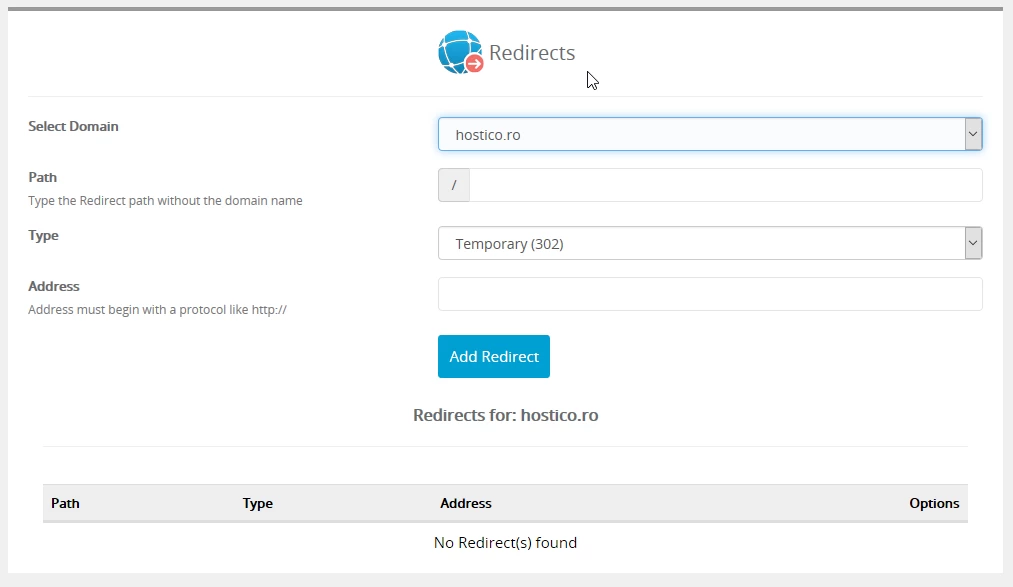
We will carefully fill out each field in the following order:
- In Select Domain we will have the option to select the desired domain to be used to redirect one or more URLs or even the entire domain.
- In Path we add the internal URL without completing the domain name Ex: ( /contact.php). To redirect the entire domain to another destination, this field should be left empty.
- In Type we will select the type of redirect 302 Temporary or 301 Permanent.
- In the Address field, the desired destination URL will be filled in, where the actual redirection will take place.
After you have added a redirect, it will be stored in the footer of the page, directly below the field where it was entered, from where it can be deleted using the Red icon X. Unfortunately, the redirects added in the webuzo panel cannot be edited, so they must be filled in carefully.
If the redirect is incorrect, it will be deleted using the red icon X and we will restart everything from the beginning.
